
5.4 KiB
Raycast AI OpenRouter Proxy
This project provides a proxy server that allows Raycast AI to utilize models from any OpenAI-compatible API (OpenAI, Gemini, OpenRouter, etc.). This brings "Bring Your Own Key" (BYOK) functionality to Raycast AI, meaning you can use your own API key and models from your chosen provider. By default, the proxy is configured to use OpenRouter.
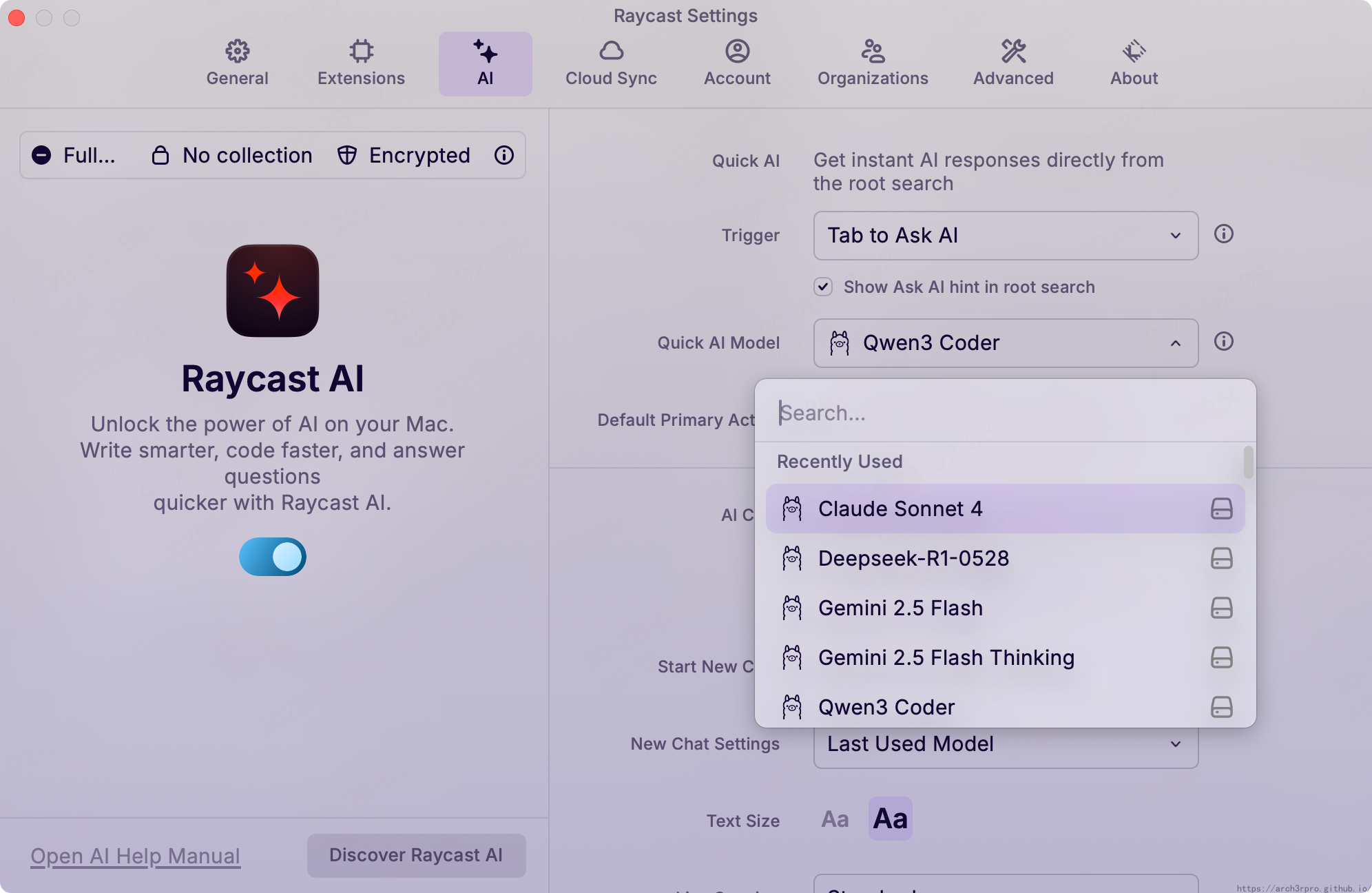

No Raycast Pro subscription required! 🎉
This proxy allows using custom models inside Raycast, including AI Chat, AI Commands, Quick AI, and AI Presets, giving you Raycast's native AI experience with the flexibility of custom models and your own API key.
Features
This proxy aims to provide a seamless experience for using custom models within Raycast. Here's what is supported and what is not:
Supported:
- 🧠 Any model: Access the wide range of models offered by OpenAI-compatible providers. OpenRouter is used by default.
- 👀 Vision support: Use models capable of processing images.
- 🛠️ AI Extensions & MCP: Use your favorite AI Extensions and MCP servers.
- 📝 System instructions: Provide system-level prompts to guide model behavior.
- 📎 Attachments: Attach all the same things as with the official models.
- 🔨 Parallel tool use: Make multiple tool calls simultaneously.
- ⚡ Streaming: Get real-time responses from models.
- 🔤 Chat title generation: Automatically generate chat titles.
- 🛑 Stream cancellation: Stop ongoing responses from models.
Partial Support:
- 💭 Displaying thinking process: See the model's thinking process.
- This feature isn't supported by all providers because the OpenAI API specification does not define a standard for it. For example, when using OpenRouter, the thinking process is always shown by default for supported models. Other providers may not send it by default and require extra setup via the
extrafield in the model's configuration as described in the provider's documentation.
- This feature isn't supported by all providers because the OpenAI API specification does not define a standard for it. For example, when using OpenRouter, the thinking process is always shown by default for supported models. Other providers may not send it by default and require extra setup via the
Not Supported:
- 🌐 Remote tools: Some AI Extensions are classified as "remote tools" and are not supported. These include web search and image generation, as well as some others. You can replace these with MCP servers if you would like similar tools.
Requirements
- Docker
- API key for your chosen provider (e.g., OpenRouter)
Model Configuration
The proxy's behavior is primarily configured through a models.json file in the root directory of the project. This file defines the models available to Raycast and their specific settings. Each entry in the JSON array represents a model and can include the following properties:
name: The name of the model as it will appear in Raycast.id: The model ID in the format expected by your provider.contextLength: The maximum context length (in tokens) the model supports. Only affects Raycast's UI and not the model itself.capabilities: An array of strings indicating the model's capabilities."vision": The model can process images."tools": The model supports AI Extensions and MCP (tool calling).
temperature: (Optional) Controls the creativity of the model. A value between 0 and 2.topP: (Optional) Another parameter to control the randomness of the output, a value between 0 and 1.max_tokens: (Optional) The maximum number of tokens the model is allowed to generate in a single response.extra: (Optional) An object for advanced, provider-specific configurations. These options are passed directly to the provider's API.
Default Configuration
The default models.json has 6 OpenRouter models configured, with the first four being free models and the last two being paid models. You can modify the models.json configuration according to your needs. Official OpenRouter model query:
- Moonshotai Kimi-K2
- DeepSeek V3
- Qwen3 Coder
- DeepSeek-R1-0528
- Gemini 2.5 Flash Thinking
- Claude Sonnet 4
After modifying models.json, please restart the application or container.
Usage
-
After installing the application in 1Panel, configure the following parameters:
- Proxy Server Port: Default is 11435, can be changed as needed
- API Key: Your API provider key
- API Base URL: Default is OpenRouter's API endpoint, can be changed to other OpenAI-compatible API endpoints
-
In Raycast settings, go to AI > Ollama Host and set the host to
localhost:11435(or the port you configured). -
Now you can use custom models in Raycast and enjoy AI features without a Pro subscription!
FAQ
How does this compare to the official Raycast BYOK feature?
Raycast released a built-in BYOK feature in v1.100.0. The official implementation has a few differences compared to this proxy:
- It only supports Anthropic, Google and OpenAI. This proxy supports any OpenAI-compatible provider.
- All your messages go through Raycast's servers.
- Your API keys are sent to Raycast's servers.
- You have less control over the models and their configurations.
Is a Raycast Pro subscription required to use this?
No, one of the main benefits of this proxy is to enable the use of custom models within Raycast without needing a Raycast Pro subscription.
Do I need to install Ollama?
No, you do not need to install Ollama.